Latest Posts
Browsing Category "Web Development"

HTML Color Codes

- Wednesday, 5 November 2014 2 Comments
FFF
 FFF
CCC
 CCC
999
 999
666
 666
333
 333
000
 000
FFC
 C00
FF9
 900
FF6
 600
FF3
 300
99C
 C00
CC9
 900
FFC
 C33
FFC
 C66
FF9
 966
FF6
 633
CC3
 300
CC0
 033
CCF
 F00
CCF
 F33
333
 300
666
 600
999
 900
CCC
 C00
FFF
 F00
CC9
 933
CC6
 633
330
 000
660
 000
990
 000
CC0
 000
FF0
 000
FF3
 366
FF0
 033
99F
 F00
CCF
 F66
99C
 C33
666
 633
999
 933
CCC
 C33
FFF
 F33
996
 600
993
 300
663
 333
993
 333
CC3
 333
FF3
 333
CC3
 366
FF6
 699
FF0
 066
66F
 F00
99F
 F66
66C
 C33
669
 900
999
 966
CCC
 C66
FFF
 F66
996
 633
663
 300
996
 666
CC6
 666
FF6
 666
990
 033
CC3
 399
FF6
 6CC
FF0
 099
33F
 F00
66F
 F33
339
 900
66C
 C00
99F
 F33
CCC
 C99
FFF
 F99
CC9
 966
CC6
 600
CC9
 999
FF9
 999
FF3
 399
CC0
 066
990
 066
FF3
 3CC
FF0
 0CC
00C
 C00
33C
 C00
336
 600
669
 933
99C
 C66
CCF
 F99
FFF
 FCC
FFC
 C99
FF9
 933
FFC
 CCC
FF9
 9CC
CC6
 699
993
 366
660
 033
CC0
 099
330
 033
33C
 C33
66C
 C66
00F
 F00
33F
 F33
66F
 F66
99F
 F99
CCF
 FCC
CC9
 9CC
996
 699
993
 399
990
 099
663
 366
660
 066
006
 600
336
 633
009
 900
339
 933
669
 966
99C
 C99
FFC
 CFF
FF9
 9FF
FF6
 6FF
FF3
 3FF
FF0
 0FF
CC6
 6CC
CC3
 3CC
003
 300
00C
 C33
006
 633
339
 966
66C
 C99
99F
 FCC
CCF
 FFF
339
 9FF
99C
 CFF
CCC
 CFF
CC9
 9FF
996
 6CC
663
 399
330
 066
990
 0CC
CC0
 0CC
00F
 F33
33F
 F66
009
 933
00C
 C66
33F
 F99
99F
 FFF
99C
 CCC
006
 6CC
669
 9CC
999
 9FF
999
 9CC
993
 3FF
660
 0CC
660
 099
CC3
 3FF
CC0
 0FF
00F
 F66
66F
 F99
33C
 C66
009
 966
66F
 FFF
66C
 CCC
669
 999
003
 366
336
 699
666
 6FF
666
 6CC
666
 699
330
 099
993
 3CC
CC6
 6FF
990
 0FF
00F
 F99
66F
 FCC
33C
 C99
33F
 FFF
33C
 CCC
339
 999
336
 666
006
 699
003
 399
333
 3FF
333
 3CC
333
 399
333
 366
663
 3CC
996
 6FF
660
 0FF
00F
 FCC
33F
 FCC
00F
 FFF
00C
 CCC
009
 999
006
 666
003
 333
339
 9CC
336
 6CC
000
 0FF
000
 0CC
000
 099
000
 066
000
 033
663
 3FF
330
 0FF
00C
 C99
009
 9CC
33C
 CFF
66C
 CFF
669
 9FF
336
 6FF
003
 3CC
330
 0CC
00C
 CFF
009
 9FF
006
 6FF
003
 3FF

Cutting Costs For Website Creation

- Tuesday, 4 November 2014 2 Comments
Do you want your own WordPress website but do not want to spend the time creating it yourself? There are many different reasons for outsourcing the creation of a WordPress website to a professional web designer or web design company. You may not have the time to create a WordPress site or perhaps you want to ensure your WordPress site appears as professional as possible. When running a small business, your website is the main online representation of your business. A lot of care needs to be taken so that your website attracts customers and provides them with the information they require. When you are thinking about hiring a web designer or web design company to create your WordPress site, make sure that you understand the costs of custom WordPress website creation. This will help avoid complications or confusion over the final price of your WordPress site.
 photo 590801_zpsd7bbe176.png
Types of WordPress Services
When you hire web designers to create your WordPress site, you should understand exactly what services you are hiring them for. The basic creation of a WordPress site is one thing, while search engine optimization and marketing can be entirely separate. The work that goes into the creation of a WordPress should also be broken down. Most designers will charge a fee based on either the amount of hours required to complete the project or the number of services provided. This can include further charges for additional webpages or fees for the creation of readable content.
Are you going to provide the designer with images and content or do you want them to write content and find suitable images? The same is true for custom graphics, contact forms, and other items that will be added to your website. These are factors that should be considered before the contract is created. Also, if you require special features for your WordPress site, then the designers may need to create an original WordPress theme or plugin.

Creation of WordPress Themes and Plugins
If specific WordPress themes or plugins need to be created for your website, your final cost will be affected. The development of WordPress themes and plugins requires time and expertise that goes beyond basic website creation. Be prepared to pay additional charges for any special features you wish to include on your website.

Read the Entire Contract
After going through the various services that you are going to need, make sure you read the entire contract before moving forward. Once the contract is signed and the services begin, both parties should be protected against changes and alterations to the types of services being performed. Read the entire contract and ask any questions that you might have. If the designers that you hire have experience, they should be able to break down the entire process and provide you with details regarding any charges.

In the end, the cost of WordPress website creation will depend on the complexity and size of your WordPress site. The more work that is required, the more expensive the project will become. Understand what services you are asking for and ask questions whenever necessary.

Reasons for Switching to WordPress

- 3 Comments
Are you still not convinced that WordPress provides the best CMS and website creation solutions? WordPress continues to grow in usage every day and with each new plugin or theme that is created, the power of WordPress expands ever further. A powerful CMS or blogging platform, WordPress is versatile and can handle more than what you may think. If you are still on the fence about whether you should use WordPress for the creation of your website or to replace your existing content management system (CMS) then keep reading.
 photo special-wordpress_zps09103205.png
Ease of Use
The main argument for switching to WordPress is the ease of use. WordPress is very user friendly and designed to allow any newcomer to quickly get their website up and running. Instead of paying someone else to create a website, businesses can design their own site. The simple interface and customization options are relatively easy to understand.

Customization Options
The amount of customization offered with WordPress makes it incredibly versatile. There are thousands of different themes and plugins to choose from. Almost any feature that you could imagine has probably been covered by the many WordPress plugins created by independent developers. Add contact forms, embed media, improve search engine optimization, and provide other helpful features – all through the help of WordPress plugins.

Better Search Engine Optimization
SEO is made easier with the help of WordPress. WordPress allows users to create tags and categories for their posts, which generates more webpages that can be indexed by search engines. WordPress also employs clean coding that makes it easier for search engines to understand your content. With the help of a useful WordPress plugin, you can find even more SEO benefits.

Responsive Website Design
Over the past couple of years more websites have started using responsive website design to make the transition from desktop internet browsers to smart phones and mobile devices. Before the spread of responsive design, website owners would often have to create a second website specifically for mobile devices. Responsive design adjusts the layout of elements on a webpage according to the width of the device being used to view the page. It is now rare to find a WordPress theme that does not use responsive design. With WordPress and responsive theme you will not have to worry about how your site appears on mobile devices.

Loads of Free Resources
WordPress itself is free to use, as well as many of the most popular themes and plugins. If you choose, there are premium themes and plugins with additional support and features; though, you can generally find great alternatives for free.

Transfer from other CMS Platforms to WordPress
In addition to offering lots of free features and being easy to use, it is also a simple process to transfer your website from another platform to WordPress. WordPress includes the ability to transfer websites from Google Blogger, Joomla, Drupal, and many other popular platforms. Without much work, you can migrate your existing website to WordPress.

The freedom allowed with WordPress makes it perfect for anyone looking for a new blogging platform, CMS, or website creation software. Download the WordPress software and get started today.

Best CMS (Content Management Systems)

- 10 Comments
What is content management system (CMS)?
Content management system is software that helps you keep track of each and every piece of your content on the website, as if you are using a local public library of books and manage them. The content on your website can be anything like simple text, documents, photos, music, videos or any other thing you can think off. The best part of CMS is that it requires almost no technical knowledge or skill to manage and maintain it, everything about your content is managed by CMS.

Website building has become much more easier with the availability of many content management systems. You do not have to struggle much with html/css coding for webpages. In this article you will find 12 best content management systems that have made web developers and website publishers job much easier.

Although there are many content management systems (CMS), but many of them are excessively complicated and require greater level of technical knowledge. Some of them are very simple, easy to use and also give the flexibility to customize the website. So in this article let use look at some of the best content management systems.
 photo integrate-analytics-with-cm_zpsf05e55a8.png

Wordpress

WordPress is a content management software that you can use it to create a beautiful website or blog. WordPress is free, but the kind of features and ease of utilization are priceless.


This software is build by the community of hundreds of volunteers, and if you decide to use this cms software you will find thousands of plugins and themes available that can transform your site into amazingly anything you imagine. There are over 60 million people who are using WordPress CMS to power their website. Visit WordPress website to download and use it. Most of the web hosting service provide easy installation of WordPress.


Drupal
Using Drupal will help you build any type of website from personal blogs to enterprise applications. You find thousands of add-on modules and themes that will let you build any type of site you can imagine. Drupal can be used to build advanced database management website for this little technical knowledge is required.

Drupal is built and supported by active and diverse community of people from around the world. It is an open source content management platform that is used by millions of websites and applications. Most of the web hosting services provide easy installation of Drupal.


Joomla
Joomla is a award winning content management system, it helps you build websites and also powerful online applications. Installing and setting up of Joomla is very easy and you do not have to be a advance user. Joomla is a open source content management solution that is available freely for everyone. Many web-hosting service provide one click installation of Joomla, it has many aspects like ease of use, extensibility that have made it so popular.


SilverStripe CMS

SilverStripe CMS is a platform that is used for building websites, intranets, and other web applications. Most of the government, businesses and non profit organizations are using this CMS system. SilverStripe CMS is immensely flexible and easy to customize also provides fundamental security models, caching, workflow and multiple language. SilverStripe CMS is open source, contains powerful php5 based programming framework, it is underpinned by public documentation, free code, and a developer community.


Frog CMS

Frog CMS offers flexible templating system, elegant user interface, simple user management and permissions, also it provides tools necessary for content management. Frog CMS is based on well known Ruby on Rails application. Frog CMS requires PHP5, web-server with Apache mod_rewrite and with MySQL database or Sq-lite 3 with PDO. Frog CMS does not require you to learn another scripting language because it has simple templating code and directly uses PHP.


CushyCMS

CushyCMS is free content management system that's light weight, fast and simple. The main aim of Cushy CMS to to make life easier for the web designers by simplifying content management. This CMS gives clients access and ability to change content of specific number of pages without effecting everything else. With few css classes you can define editable areas of your pages. No server requirement and no programming required, you don't even have to train your clients. Just provide FTP details and you are done.


MODX
MODX is one of the best platform for out of the box Ajax enhanced,accessible XHTML/CSS sites. Building CSS based sites is easy with MODX,also you will be easily be able to create custom applications. You don't have to learn any complex template systems and it provides good API. It is believed that its next release will be more simple and flexible. MODX is like a blank canvas for web-designer's creative vision. You can power your responsive HTML5 websites to mobile CMS for native Android or iOS apps or any mobile platform that comes in future.


dotCMS

dotCMS Web Content Management (WCM) has been build with the philosophy that creating and managing enterprise websites should not be difficult. You can easily integrate complex J2ee development stacks. It's use will also reduce the work time, for processes where others CMS take weeks dotCMS system takes only days. It helps in developing engaging, responsive, multi-channel content to drive your online business. dotCMS will provide you the ability to respond any IT business in days not weeks and all this is because of its support for light weight web scripting, web services and comprehensive APIs.


Contao
Contao CMS is for people who want professional presence with easy maintain software. Contao CMS provides high security standards and also allow you to develop search engine friendly websites. Even people with disabilities can use this application. Contao is now one of most popular open source content management system because of its ease of managing user rights, mordren CSS framwork, Live update servise and many ready to integrate modules like news, calender, forms, etc. You can choose from hundreds of additional modules and extensions can be installed with push of a button.


ExpressionEngine
ExpressionEngine is a powerful Content Delivery Platform. It is a agile open source framework and CodeIgniter. With ExpressionEngine a web-professionals can build their dream website or applications. Thousands of people use EllisLab software to build their applications, sites and business. It provides you with an ability to design template files in house and also manage multiple authors.


concrete5
With concrete5 you will be able to start simple content site and easily turn it into intranet or extra-net. You will be able to freely use the most active community. Concrete5 is completely free to use as it is open source content management system, its marketplace provides add-ons and themes, it has plenty free and commercial add-ons. If you have any major enterprise requirement than even core team may be ready to help you, has good support system.


Which Content Management System To Choose

So after going through the 12 best content management systems, now the question is which one to choose. Many will settle down with Wordpress or Drupal or Joomla because of their massive popularity and add-on availability, but unless you don't try other CMS how will you know if any of the other CMS would have suited your needs. So if you are web developer my suggestion would be to explore other CMS so that you can provide better service to your client. But if you intent to quickly setup and make money than better go for Wordpress.
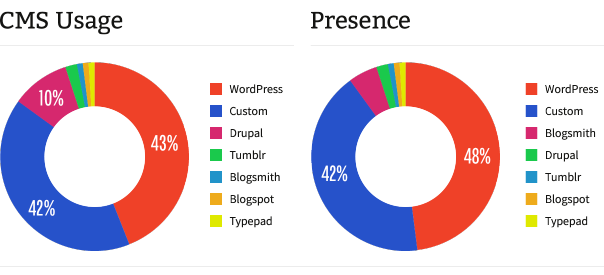
 photo techmeme-100-cms_zpsd46c8077.png
What Goes Into Content Management System Software?
Expression Engine, eZ Publish and Vivvo CMS are our top-ranked systems. Not only did these systems consistently finish at the top of our side-by-side comparisons, but in many cases the gap between these and the rest is significant. Begin here by narrowing the field based on your most-needed features. From there, move to a test phase and spend time on the demos. In the end, it will be up to you to determine the best CMS is for your specific project and skill set. Every potential user is searching for a unique set of features, however.

Built-in Features

These are the features and functionality that are standard with each CMS. Each content management system offers a standard series of features through which users can ultimately gain their footing and become comfortable using the application. Still, it is but a framework to greater and grander things. The framework comprising a CMS is not typically enough to create a full end product, and add-on features are necessary to improve the versatility of your website.

Add-on Features

The main defining feature of most CMS applications is the ability to extend the original framework into a more comprehensive web solution. Developer communities flock around Open Source software and create a flurry of new capabilities for content management systems. Most community developers do this for free, but some sell their extensions as add-ons to the CMS for a nominal fee. Add-ons are helpful little additions to a CMS that enable you to make use of new software to improve your website’s offerings to visitors. Whether it is enabling your site to show social media feeds or adding eCommerce capabilities to your storefront, add-ons are a boon to be utilized.

Management

On our side-by-side matrix, management of the users, design and content assets within a CMS are all reviewed here. These management features describe the inherent or pluggable way the systems organize, schedule and deploy the information they contain. Advertising management, asset management, clipboard, content scheduling, content staging, inline administration, package deployment, sub sites/roots, themes/skins, trash, web stats, a web-based template manager, a web-based translation manager and a workflow engine are all standards by which this category measures the products in our lineup.

Security

Security is a no-brainer on the web. If you want a CMS that your employees, customers and clients can trust, you could need a variety of security measures, many of which are reviewed here. Audit trail, Captcha, content approval, email verification, several different types of authentication protocols, login history, a sandbox, session management and SSL compatibility (logins and pages) are many features you might want in a CMS. Some of these content management system software applications build these features into the main offering, while others offer them as free plugins or for a small fee.

Ease of Use

When shopping for a CMS, whether you are a blogger, developer or designer, ease of use is probably the most desirable feature, second only to the actual publishing and performance components. If you aren’t able to immediately pick up a software application and start building your site, odds are it isn’t entirely user friendly. A CMS should enable both technical and non-technical users to create a truly comprehensive web presence with ease.


Help & Support
Support is another vital component of Open Source content management system software. Since the core and component code is updated and changed often, user forums, skeletons and comprehensible online documentation has to be readily available as an ongoing guidebook. Community forums also play a strong role in the support and continual progression of a CMS application.

Content creation, content management, publishing and presentation are the four main categories of CMS functionality. Here are just a few benefits your online business can gain by implementing a CMS:
  • Reduce the cost of site maintenance
  • Streamline the authoring process
  • Increase security
  • Greater consistency
  • Reduce information duplication
  • Improve site navigation
  • Quick turnaround time for new pages and changes to your site
  • Increase site flexibility
  • Support remote authoring
  • Increase growth capacity

Our trademark side-by-side comparison can only compare the types of features offered by each CMS, but it doesn’t really address the power or usability of those features. It is in this way that each of these systems distinguishes itself from another. Ratings and check marks fail to really capture the full worth of any CMS; only each specific user can determine which is the “best” CMS. Every one of the systems reviewed here has a demo version that gives a more accurate picture of its capabilities.


You might choose to explore these aspects individually by first reading our articles related to content management system software, or you can view them all on our side-by-side comparison of content management system software. Either way, let this site be a starting point to discovering the CMS of your dreams and how to make it work for you. Whatever system you choose, there are many online resources to aid you with installation, set up and use, and everything we've reviewed here offers a demonstration product so you can get a feel for it by actually using the system before you commit all your content and assets.

How to Migrate your Blog from Blogger to WordPress

- 6 Comments
http://popcorn-it.com/
Your blog (abc.blogspot.com) is hosted on Blogger but you would now like to move your blog from Blogger to WordPress (self-hosted) with a personal domain name like abc.com. What is the easiest way to switch from Blogger to WordPress without losing search traffic and your existing subscribers?
WordPress provides an easy one-click option for importing blog posts and reader comments from Blogger into a new WordPress blog but there’s more to migration than just transferring content. For instance:
• Some of your articles on the old blogspot blog could be ranking very high in search engines for certain keywords but once you move these articles to a new WordPress blog, you will lose the organic search traffic since the permalinks (or URLs) of your blog posts will change.
• People often land on your blog through search engines, browser bookmarks and via other web sites that have linked to your blog pages. If you migrate to WordPress, Blogger would not automatically redirect the incoming traffic to your new website.
• When you switch from Blogger to WordPress, existing readers who are subscribed to your Blogger RSS Feed may be lost forever if they don’t manually subscribe to your new WordPress feed address (and most won’t).
The Importer tool available inside WordPress will only transfer content from Blogger to WordPress but if would also like to take care of each and every issue listed above, follow this step-by-step tutorial. It takes less than 5 minutes to complete and the method will also help transfer that Google Juice from the old blogspot.com address to your new WordPress blog.

How to Move a Blog from Blogger to WordPress
Important: Before you start the migration, it may be a good idea to backup your Blogger blogincluding the XML template, blog posts and comments just to be on the safe side.
1. Register a new web domain, buy hosting and install WordPress on your new domain.
2. Open your WordPress Admin Dashboard and under Tools -> Import, select the Blogger option. Authorize WordPress to access your Blogger Account, select your blogspot.com blog and within minutes, all your Blogger blog posts and comments will be available on the new WordPress site.
3. Open the WordPress themes editor under Appearance -> Editor and open the functions.php file for editing. Most WordPress themes include a functions.php file or you can upload it manually into your WordPress themes folder through cPanel or FTP. Copy-paste the following snippet of code inside your functions.php file (at the beginning of the file) and click the “Update File” button to save your changes.

1.   <?php
2.    
3.   function labnol_blogger_query_vars_filter( $vars ) {
4.     $vars[] = "blogger";
5.     return $vars;
6.   }
7.    
8.   add_filter('query_vars', 'labnol_blogger_query_vars_filter');
9.    
10.  function labnol_blogger_template_redirect() {
11.    global $wp_query;
12.    $blogger = $wp_query->query_vars['blogger'];
13.    if ( isset ( $blogger ) ) {
14.      wp_redirect( labnol_get_wordpress_url ( $blogger ) , 301 );
15.      exit;
16.    }
17.  }
18.   
19.  add_action( 'template_redirect', 'labnol_blogger_template_redirect' );
20.   
21.  function labnol_get_wordpress_url($blogger_slug) {
22.    global $wpdb;
23.    if ( preg_match('@^(?:https?://)?([^/]+)(.*)@i', $blogger_slug, $matches) ) {
24.      $q = "SELECT guid FROM $wpdb->posts LEFT JOIN $wpdb->postmeta
25.            ON ($wpdb->posts.ID = $wpdb->postmeta.post_id)
26.            WHERE $wpdb->postmeta.meta_key='blogger_permalink'
27.            AND $wpdb->postmeta.meta_value='$matches[2]'";
28.      $wp_url = $wpdb->get_var($q);
29.    }
30.    return $wp_url ? $wp_url : home_url();
31.  }
32.   
33.  ?>

4. Open your Blogger Dashboard and choose Templates. Scroll down the templates page and choose the “Revert to Classic Templates” option to switch from the XML-based Blogger templates to Tag based templates.
5. Copy-paste the following snippet into your Blogger template editor but before you do that, replace all occurrences of labnol.org with your WordPress site URL. For instance, if your WordPress site is located at example.com, replace labnol.org with example.com and paste the modified snippet in the template editor. Save the changes.

1.   <html>
2.    <head>
3.       <title><$BlogPageTitle$></title>
4.       <script>
5.         <MainOrArchivePage>
6.             window.location.href='http://labnol.org/'
7.         </MainOrArchivePage>
8.         <Blogger> <ItemPage>
9.             window.location.href='http://labnol.org/?q=<$BlogItemPermalinkURL$>'
10.        </ItemPage> </Blogger>
11.      </script>
12.      <MainPage>
13.        <link rel="canonical" href="http://labnol.org/" />
14.      </MainPage>
15.      <Blogger><ItemPage>
16.        <link rel="canonical" href="http://labnol.org/?blogger=<$BlogItemPermalinkURL$>" />
17.      </ItemPage></Blogger>
18.   </head>
19.   <body>
20.      <MainOrArchivePage>
21.          <h1><a href="http://labnol.org"><$BlogTitle$></a></h1>
22.      </MainOrArchivePage>
23.      <Blogger><ItemPage>
24.          <h1>
25.            <a href="http://labnol.org/?blogger=<$BlogItemPermalinkURL$>">
26.              <$BlogItemTitle$>
27.            </a>
28.          </h1>
29.          <$BlogItemBody$>
30.      </ItemPage></Blogger>
31.   </body>
32.  </html>

We are almost done. Open any page on your old Blogger blog and it should redirect you to the corresponding WordPress page. We are using a permanent 301 redirect on the WordPress side and therefore all the Google Juice and PageRank should pass to your new WordPress pages with time (video).

The above method works for regular blogspot.com URLs and also country-specific Blogger domains like blogspot.co.uk or blogspot.in that Google added about an year ago to better handle censorship related requests.

The Blogger Import tool moves only posts and comments from Blogger to WordPress but not images. And that should be fine because the image URLs in your imported WordPress posts are still pointing to blogspot.com (where the images were originally hosted) and therefore nothing would break.

Switch RSS Feed from Blogger to WordPress
When you move from Blogger to WordPress, the URL of your RSS feed will change as well. Go to Blogger -> Settings -> Other and choose Post Feed Redirect URL under Site Feed. Here you can type the web address of your new WordPress RSS feed here and the existing RSS subscriber will automatically move to your new feed.
If you are using FeedBurner, just replace the source from Blogger RSS feed to your new WordPress feed.

Migration to WordPress Complete – What Next?
Now that your new WordPress site is up and running with all the old Blogger posts, here are a few important things you should do:
1. Add your new WordPress site to Google Webmaster, verify the site ownership and and also submit a XML Sitemap listing the URLs on your new site.
2. Implement Google Authorship so that your profile pictures appears against your article in Google Search results.
3. Follow these WordPress optimization tips, install some of the essential plug-ins and pay special attention to improving the security of your WordPress site.